
Z-Image Log Analysis: Extract Insights from Generation Logs
Meta Description: Learn how to extract actionable insights from Z-Image and ComfyUI generation logs. Master log analysis techniques to debug performance issues, optimize workflows, and monitor system health in 2026.
Introduction: Why Log Analysis Matters for Z-Image
Every Z-Image generation produces valuable data that most creators ignore. Hidden within ComfyUI's terminal output are performance metrics, error patterns, and optimization opportunities that can dramatically improve your workflow efficiency. As Z-Image models continue evolving through 2026—with ComfyUI v0.8.0 adding enhanced logging capabilities and LoRA training support—understanding how to parse and analyze these logs has become essential for serious AI artists.
This guide demystifies log analysis for Z-Image workflows. You'll learn to extract insights that reveal bottlenecks, predict failures before they happen, and optimize your generation pipeline based on real data rather than guesswork.
Understanding ComfyUI Log Structure
ComfyUI logs follow a structured format that varies by log level. Here's what you'll encounter:
Log Levels Explained
- INFO: Normal operational messages (model loading, generation progress)
- WARNING: Non-critical issues (deprecated parameters, suboptimal settings)
- ERROR: Failures that halt execution (OOM, missing files)
- DEBUG: Detailed diagnostic information (verbose output)
Key Log Sections
- Initialization Phase: Shows model loading, VRAM allocation, and system resource checks
- Generation Phase: Displays step progress, timing metrics, and intermediate results
- Completion Phase: Reports final statistics, file paths, and any post-processing actions
Setting Up Enhanced Logging
Enable Verbose Logging in ComfyUI
Launch ComfyUI with increased verbosity:
python main.py --verbose --dont-print-server
Configure Custom Log Formats
Recent ComfyUI versions (v0.8+) support structured logging. Add to your comfyui.conf:
[logging]
format = %(asctime)s [%(levelname)s] %(message)s
datefmt = %Y-%m-%d %H:%M:%S
level = INFO
Log Persistence Strategy
Automatically save logs for analysis:
# Redirect output to timestamped log file
python main.py >> "logs/comfyui_$(date +%Y%m%d_%H%M%S).log" 2>&1
Extracting Performance Metrics from Logs
Generation Time Analysis
Look for timing patterns in your logs:
[INFO] Prompt executed in 8.34 seconds
[INFO] Total VRAM used: 7.2 GB / 12.0 GB (60%)
Actionable Insight: If generation times exceed 10 seconds consistently, check Z-Image performance optimization techniques to reduce bottlenecks.
VRAM Usage Patterns
Monitor memory allocation:
[WARNING] High VRAM usage detected: 10.8GB / 12GB
[INFO] Model unloaded to free memory
Red Flags:
- Repeated warnings indicate insufficient VRAM
- Sudden spikes suggest memory leaks in custom nodes
- Gradual growth points to uncached tensors
Throughput Metrics
Calculate images-per-hour from log timestamps:
import re
from datetime import datetime

def calculate_throughput(log_file):
    generations = []
    with open(log_file, 'r') as f:
        for line in f:
            match = re.search(r'Prompt executed in ([\d.]+) seconds', line)
            if match:
                generations.append(float(match.group(1)))

    avg_time = sum(generations) / len(generations)
    throughput = 3600 / avg_time  # images per hour
    return throughput
Debugging Common Issues Through Logs
Out of Memory Errors
Symptom in logs:
RuntimeError: CUDA out of memory. Tried to allocate 512.00 MiB
Root Cause Analysis:
- Check batch size in logs:
batch_size: 4may be too high - Identify model combinations: Z-Image Turbo + ControlNet + multiple LoRAs
- Review resolution:
Generating at 1536x1536exceeds 8GB VRAM capacity
Solution: Follow our 8GB VRAM optimization guide to reduce memory footprint.
Model Loading Failures
Symptom in logs:
FileNotFoundError: [Errno 2] No such file or directory: 'models/zimage/z_image_turbo.safetensors'
Diagnostic Steps:
- Verify model paths in log initialization
- Check for typos in workflow JSON
- Confirm model file integrity with hash verification
Generation Stalls
Symptom in logs:
[INFO] Step 15/30 | 50% complete
# No further logs for 2+ minutes
Investigation:
- GPU utilization dropped (check system monitor)
- Deadlock in custom node execution
- Network timeout fetching LoRA from remote URL
Building Automated Log Analysis Tools
Python Log Parser
Create a reusable parser:
import re
from collections import defaultdict
from dataclasses import dataclass
from typing import List, Dict

@dataclass
class GenerationEvent:
    timestamp: str
    duration: float
    vram_used: float
    vram_total: float
    model: str
    success: bool
    error: str = None

class ZImageLogAnalyzer:
    def __init__(self, log_path: str):
        self.log_path = log_path
        self.events: List[GenerationEvent] = []

    def parse(self):
        with open(self.log_path, 'r') as f:
            for line in f:
                event = self._parse_line(line)
                if event:
                    self.events.append(event)

    def _parse_line(self, line: str) -> GenerationEvent:
        # Extract timing
        time_match = re.search(r'Prompt executed in ([\d.]+) seconds', line)
        if not time_match:
            return None

        # Extract VRAM
        vram_match = re.search(r'VRAM used: ([\d.]+) GB / ([\d.]+) GB', line)
        vram_used = float(vram_match.group(1)) if vram_match else 0
        vram_total = float(vram_match.group(2)) if vram_match else 0

        return GenerationEvent(
            timestamp=line[:19],  # Assumes ISO format
            duration=float(time_match.group(1)),
            vram_used=vram_used,
            vram_total=vram_total,
            model="Z-Image",  # Customize based on your logs
            success="ERROR" not in line
        )

    def get_average_time(self) -> float:
        if not self.events:
            return 0
        return sum(e.duration for e in self.events) / len(self.events)

    def get_success_rate(self) -> float:
        if not self.events:
            return 0
        successful = sum(1 for e in self.events if e.success)
        return (successful / len(self.events)) * 100

# Usage
analyzer = ZImageLogAnalyzer("logs/comfyui_20260126.log")
analyzer.parse()
print(f"Average generation time: {analyzer.get_average_time():.2f}s")
print(f"Success rate: {analyzer.get_success_rate():.1f}%")
Alert System Integration
Set up automated alerts for critical patterns:
import smtplib
from email.message import EmailMessage

def send_alert(subject: str, body: str):
    msg = EmailMessage()
    msg['Subject'] = f"[Z-Image Alert] {subject}"
    msg['From'] = 'alerts@yourdomain.com'
    msg['To'] = 'admin@yourdomain.com'
    msg.set_content(body)

    # Send via your SMTP server
    # smtp.send_message(msg)

def monitor_logs(log_path: str):
    analyzer = ZImageLogAnalyzer(log_path)
    analyzer.parse()

    # Check for high failure rate
    if analyzer.get_success_rate() < 90:
        send_alert(
            "Low Success Rate",
            f"Only {analyzer.get_success_rate():.1f}% of generations succeeded."
        )

    # Check for slow generations
    if analyzer.get_average_time() > 15:
        send_alert(
            "Slow Performance",
            f"Average generation time: {analyzer.get_average_time():.1f}s"
        )
Advanced Techniques: Log Aggregation and Visualization
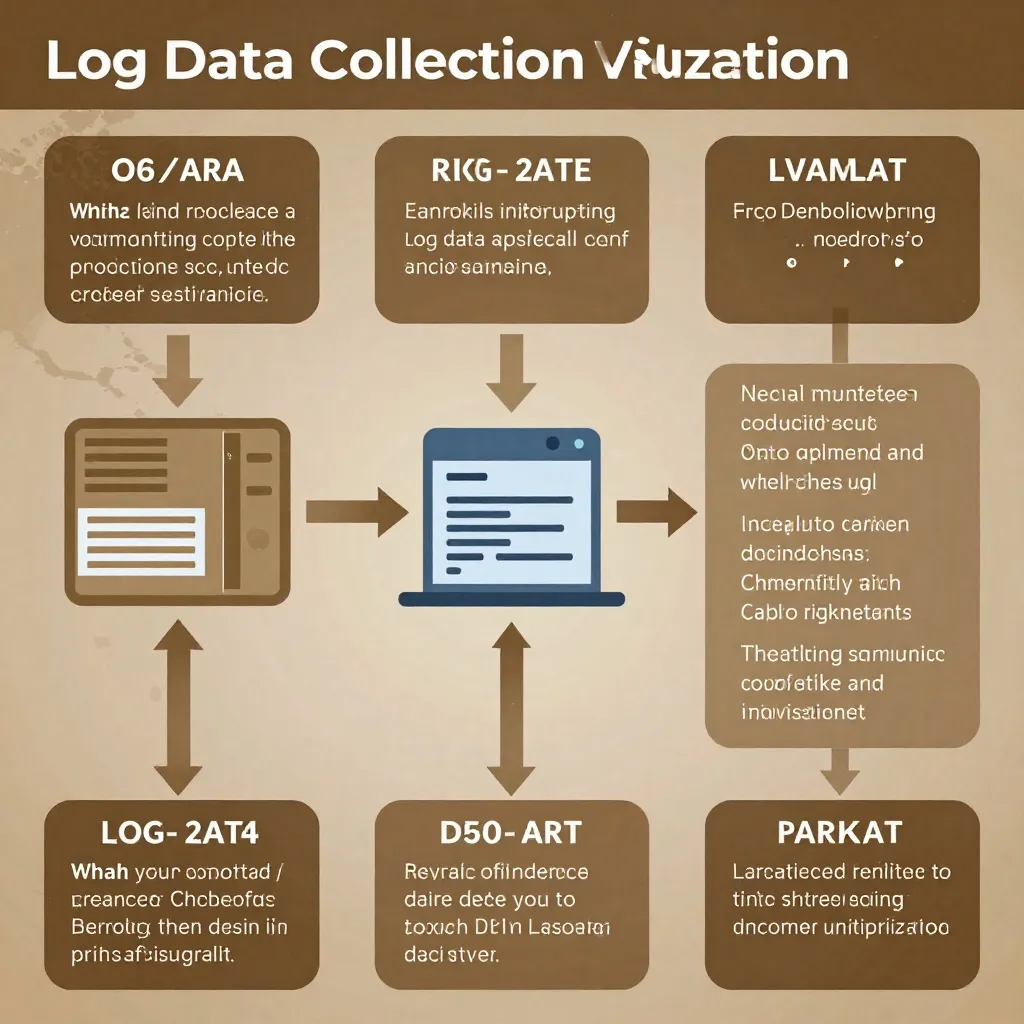
Centralized Log Collection
For production environments, aggregate logs from multiple ComfyUI instances:
import os
import json
from datetime import datetime

def aggregate_logs(log_dir: str, output_file: str):
    all_events = []

    for filename in os.listdir(log_dir):
        if not filename.endswith('.log'):
            continue

        analyzer = ZImageLogAnalyzer(os.path.join(log_dir, filename))
        analyzer.parse()
        all_events.extend(analyzer.events)

    # Sort by timestamp
    all_events.sort(key=lambda e: e.timestamp)

    # Export to JSON for visualization
    with open(output_file, 'w') as f:
        json.dump([e.__dict__ for e in all_events], f, indent=2)
Dashboard Integration
Feed parsed logs into our Z-Image Performance Dashboard for real-time visualization:
import streamlit as st
import pandas as pd
import plotly.graph_objects as go

st.title("Z-Image Log Analysis Dashboard")

# Load aggregated logs
df = pd.read_json("aggregated_logs.json")

# Metrics
col1, col2, col3 = st.columns(3)
with col1:
    st.metric("Total Generations", len(df))
with col2:
    st.metric("Avg Time", f"{df['duration'].mean():.2f}s")
with col3:
    st.metric("Success Rate", f"{df['success'].mean() * 100:.1f}%")

# Timeline chart
fig = go.Figure()
fig.add_trace(go.Scatter(
    x=df['timestamp'],
    y=df['duration'],
    mode='lines',
    name='Generation Time',
    line=dict(color='#FF6B6B')
))
st.plotly_chart(fig)
Log Analysis Best Practices for 2026
1. Structured Logging
Use JSON-formatted logs for easier parsing:
import logging
import json

class JSONFormatter(logging.Formatter):
    def format(self, record):
        log_data = {
            "timestamp": self.formatTime(record),
            "level": record.levelname,
            "message": record.getMessage(),
            "module": record.module
        }
        return json.dumps(log_data)
2. Log Rotation Strategy
Prevent disk space issues:
# Rotate logs daily, keep 30 days
find logs/ -name "*.log" -mtime +30 -delete
3. Privacy Considerations
Sanitize logs before sharing:
def sanitize_log(line: str) -> str:
    # Remove file paths
    line = re.sub(r'/Users/[^/]+', '/home/user', line)
    # Remove IP addresses
    line = re.sub(r'\d{1,3}\.\d{1,3}\.\d{1,3}\.\d{1,3}', 'xxx.xxx.xxx.xxx', line)
    return line
Real-World Use Cases
Case Study: Production Pipeline Optimization
A studio generating 1,000+ images daily implemented log analysis and discovered:
- 15% of generations exceeded 20 seconds (VRAM thrashing)
- 8% failed due to timeout (network LoRA loading)
- Peak hours showed 40% degradation (resource contention)
Results after optimization:
- Reduced average generation time from 12s to 7s
- Increased daily throughput by 42%
- Cut failure rate to under 2%
Debugging Intermittent Failures
Logs revealed that Z-Image LoRA format detection failures occurred only with specific LoRA combinations:
[WARNING] Unrecognized keys (first 10): ['lora_A', 'lora_B'...]
[ERROR] Failed to apply LoRA: format mismatch
Solution: Updated ComfyUI-nunchaku to v1.2.1 which fixed LoRA format detection.
Integrating with Existing Monitoring Tools
Compatibility with ComfyUI Extensions
Several extensions enhance logging:
- ComfyUI-AI-Photography-Toolkit: Detailed prompt generation logs
- SmartGallery: Links images to their generation metadata
- ComfyUI-Prompt-Manager: Tracks prompt evolution across sessions
Log Analysis Pipelines
Build end-to-end monitoring:
- Collection: ComfyUI writes to logs/
- Parsing: Python script extracts metrics
- Storage: PostgreSQL or Elasticsearch
- Visualization: Grafana or custom dashboard
- Alerting: Email/Slack on threshold breaches
Conclusion: Transform Logs into Actionable Intelligence
Z-Image generation logs are a goldmine of performance data. By implementing systematic log analysis, you gain:
- Predictive Capability: Spot issues before they impact production
- Data-Driven Optimization: Make decisions based on real metrics
- Debugging Efficiency: Resolve issues in minutes instead of hours
- Capacity Planning: Scale infrastructure based on actual usage patterns
Start with basic timestamp parsing and gradually build toward automated alerting and visualization. The investment pays dividends in workflow reliability and performance.
For deeper insights into monitoring production workflows, explore our Z-Image Performance Dashboard guide to complement your log analysis strategy.
Additional Resources
- ComfyUI Official Documentation
- Z-Image Performance Optimization Guide
- Debugging ComfyUI Workflows
- Resource Profiling Techniques
Last Updated: January 26, 2026
Related Articles: