AI Image Edit
AI Image Edit helps you transform uploaded images with simple prompts. Choose from multiple AI editing models to change backgrounds, adjust products, restyle portraits, remove distractions, and create clean variations.
Upload at least 1 image to use image editing mode
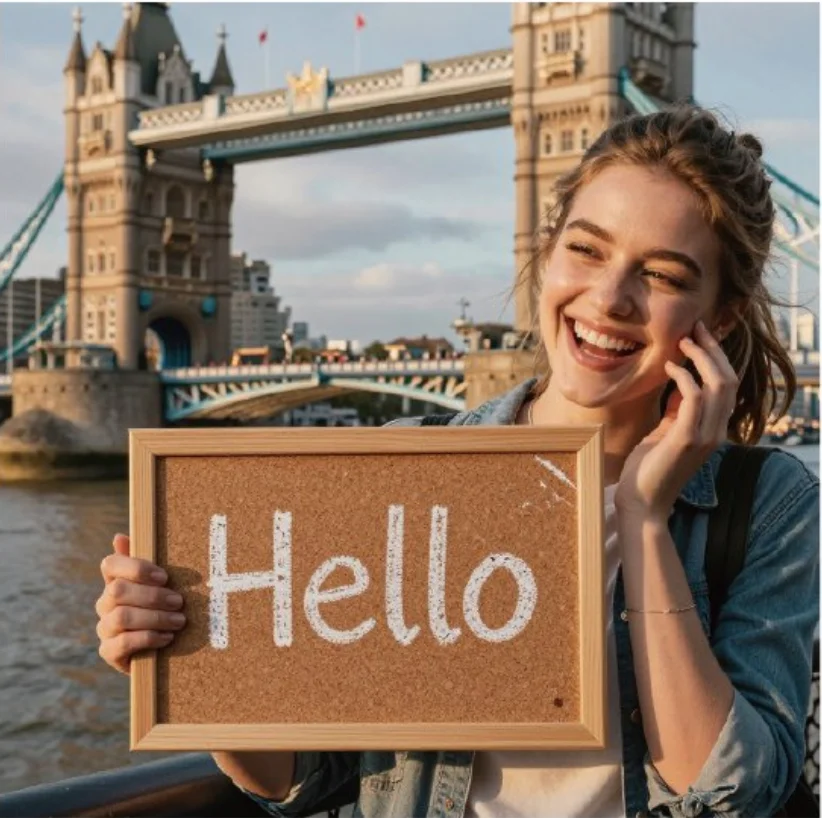
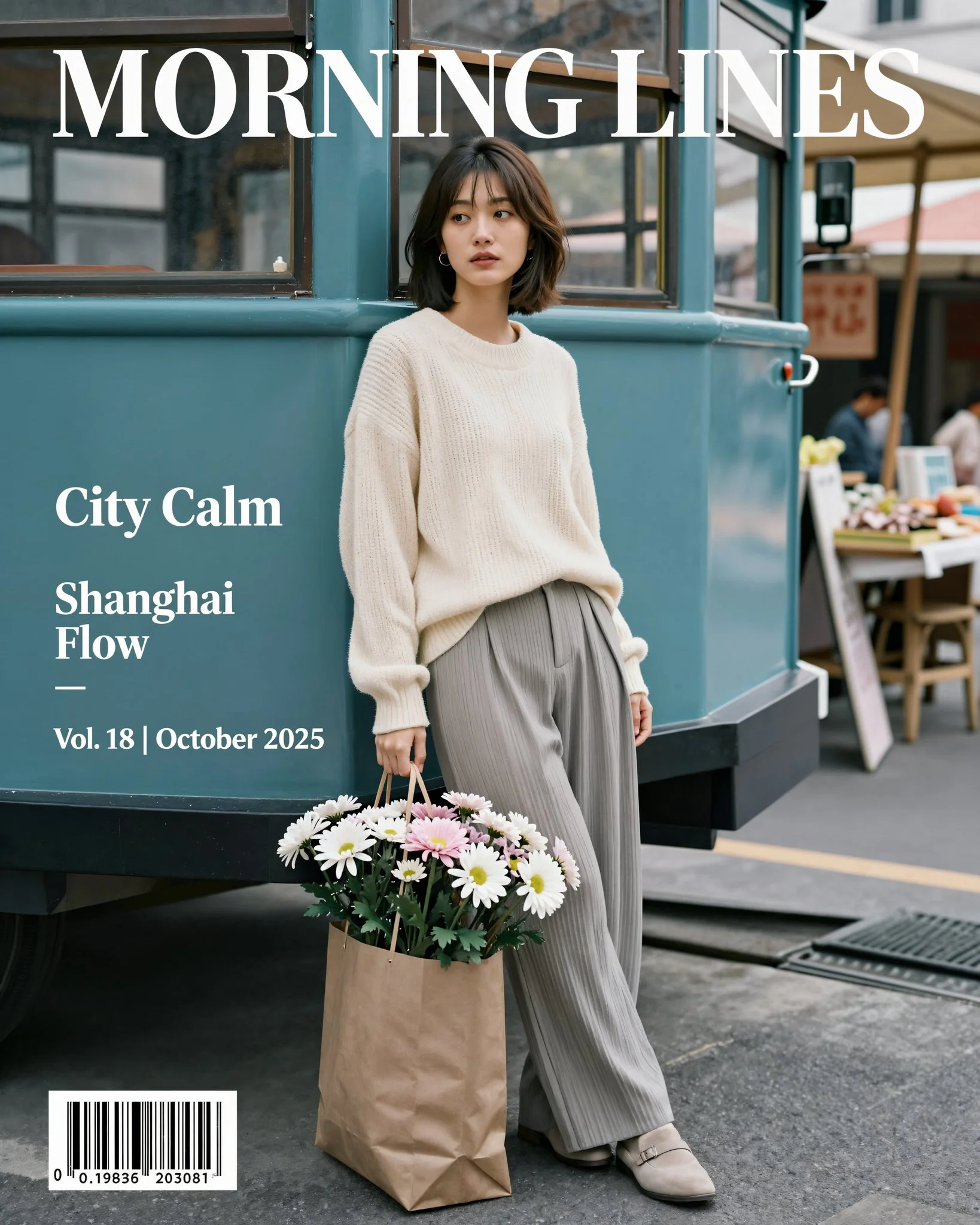
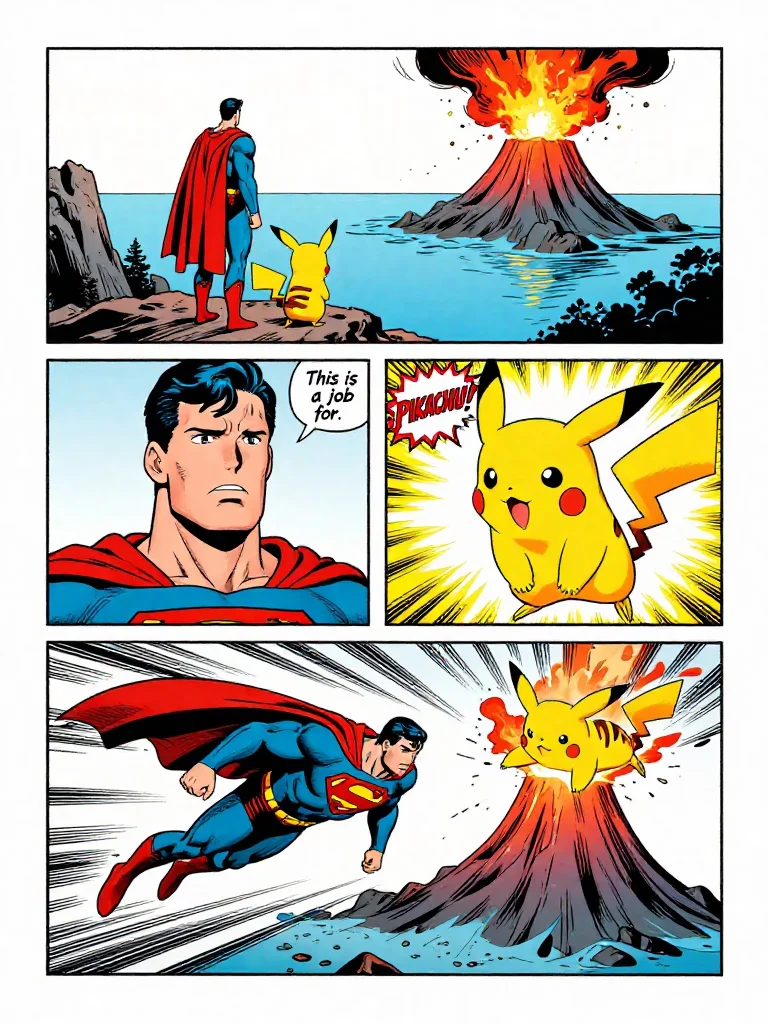
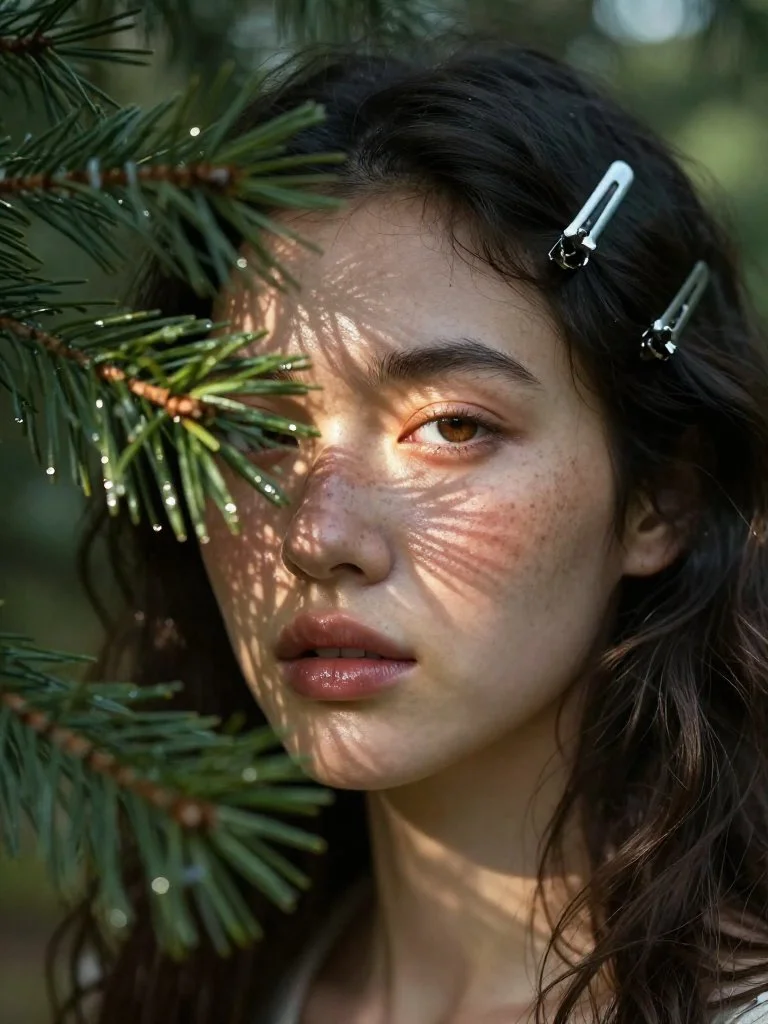
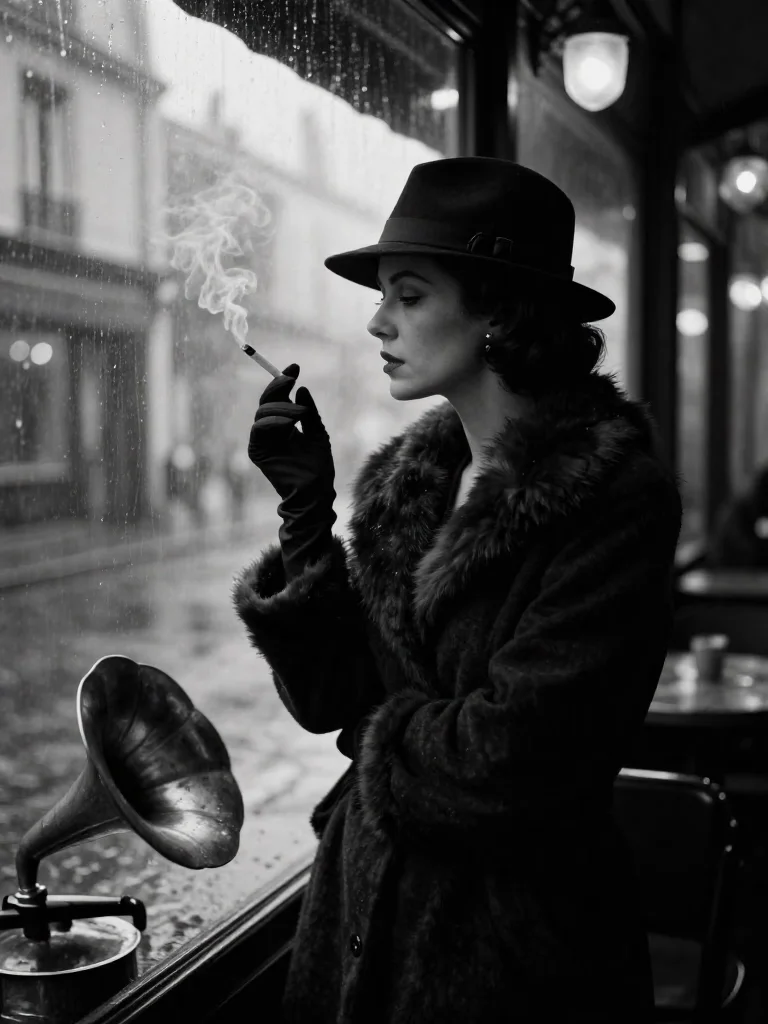
Imagine Anything Now
Enter a prompt on the left to start generating your own unique images instantly.
Model Groups


What is AI Image Edit?
AI Image Edit is an image-to-image creation workflow that starts with an existing picture and changes it according to your written instruction. Instead of rebuilding a scene manually in a design app, you upload a source image, describe the edit, and let the model generate a new version that keeps the useful structure while changing the parts you specify. Z-Image supports multiple AI editing models — including Flux 2, NanoBanana Pro, and GPT-Image-2 — so you can pick the model that best fits your editing style and quality needs. Flux 2 is selected by default for a fast and balanced editing experience. AI Image Edit is useful when you already have a product photo, portrait, concept image, poster, interior scene, or social graphic and need a faster way to test creative variations. You can ask for a background swap, color change, new lighting, object replacement, style transfer, detail cleanup, or a more polished composition.
Prompt-based editing
The editor lets you describe the change you want in everyday language, from replacing a background to turning a draft into a polished visual.
Reference image control
Because the workflow starts with your uploaded image, the model can preserve layout, subject identity, and composition while applying targeted changes.
Multiple AI editing models
Choose from several AI models including Flux 2, NanoBanana Pro, and GPT-Image-2. Each model offers different strengths — Flux 2 is selected by default for a great balance of speed and quality.
Fast creative variations
Use the editor to compare multiple versions of the same asset for ads, thumbnails, ecommerce, posts, moodboards, and design reviews.
How to Use AI Image Edit
The editing workflow works best when the source image is clear and the prompt focuses on the specific edit. Start with one strong instruction, review the result, then refine with more details.
Upload a source image
Begin your editing session by uploading the photo, artwork, product shot, or concept image you want to transform. Use a clear image with enough detail for the edit model to understand the subject, background, and composition.
Select your preferred model
The editor defaults to Flux 2 for image editing, but you can switch to other models like NanoBanana Pro or GPT-Image-2 depending on your quality needs and editing style.
Describe the exact change
Write a prompt that says what should change and what should stay the same. For example, ask the model to replace the background, make the lighting softer, remove an object, or convert the image into a premium product render.
Generate, compare, and refine
Generate the edited image, compare it with the original, and refine the prompt if needed. The editor is strongest as an iterative tool, helping you move from rough direction to a final visual quickly.
Key Features of AI Image Edit
This image editing workflow combines upload-based control, natural language editing, model selection, and fast iteration so creators can improve existing images without heavy manual retouching.
AI Image Edit with image-to-image control
The editor uses your uploaded image as the visual foundation. This gives the AI Image Edit workflow more control than text-only generation because the model can reuse pose, framing, subject placement, and overall composition. For ecommerce, portraits, interiors, ads, and concept art, this makes AI Image Edit practical for revising assets that already have the right basic structure.
Natural language AI Image Edit prompts
You can guide the edit with clear written instructions instead of masks, layers, or complex editing panels. Prompts such as "change the background to a clean studio scene" or "make the jacket red while preserving the pose" help the model understand both the target change and the constraints. This makes AI Image Edit accessible to marketers, founders, designers, and content teams.
Multi-model AI Image Editor
The editor supports multiple AI models for image editing. Flux 2 is set as the default for its strong balance of speed and editing quality, but you can switch to NanoBanana Pro for ultra-detailed output or GPT-Image-2 for high-fidelity creative edits. Pick the model that matches your project requirements.
Creative AI Image Edit variations
AI Image Edit is ideal for generating variations from one source image. You can test different color palettes, lighting directions, backgrounds, object details, and visual styles while keeping a recognizable base. This AI Image Edit approach is especially useful for A/B testing creatives, building campaign options, creating thumbnail variants, or exploring product presentation ideas.
Inspiration-driven AI image editing
The Inspiration Gallery gives users examples, prompts, and visual directions that can inform their own AI Image Edit workflow. Instead of guessing how to describe an edit, users can study successful generations, copy useful prompt patterns, and adapt them to their uploaded image. This improves results and shortens the learning curve.
Production-friendly AI Image Edit workflow
AI Image Edit supports practical content production rather than only experimentation. It can help clean up campaign visuals, restyle product photos, create social media assets, prepare presentation images, and turn rough drafts into more polished concepts. The workflow is fast enough for repeated edits and flexible enough for many visual categories.
AI Image Edit FAQ
Answers to common questions about AI Image Edit, model selection, reference images, prompt writing, and practical editing use cases.
Start AI Image Edit
Upload an image, describe the change, and use AI Image Edit to create polished variations faster. Try the AI Image Edit Now.
Explore Z-Image in your language
Switch to a localized version of this page.
Rate our service
Your feedback helps us improve Z-Image generation for everyone.
4.8
5,029 votes